
If your iCloud syncing has hit a wall, don’t panic; usually, Apple is just trying to be helpful. Whether it’s preserving your battery life, saving data, or waiting for a faster Wi-Fi connection, a pause is often just a protective measure.
The secret to a quick fix isn’t jumping straight to signing out of your account or nuking your Photos settings; it’s about understanding what’s actually happening behind the scenes.
We’re going to walk through this like pros. First, we’ll hit the heavy hitters: power, Wi-Fi, and storage. Then, we’ll dive deep into troubleshooting Photos, Messages, Backups, and Drive, tackling each one with surgical precision to get your digital life back in sync.
The experts at Apple point out that iCloud Photos can pause for a variety of reasons: Low Power Mode, Low Data Mode, a flaky network, or even just your phone getting a bit too toasty. Crucially, they warn against the “nuclear option”: don’t turn off iCloud Photos while you’re still in the basic troubleshooting phase, as it usually creates more work than it saves.
What “iCloud Syncing Paused” Means
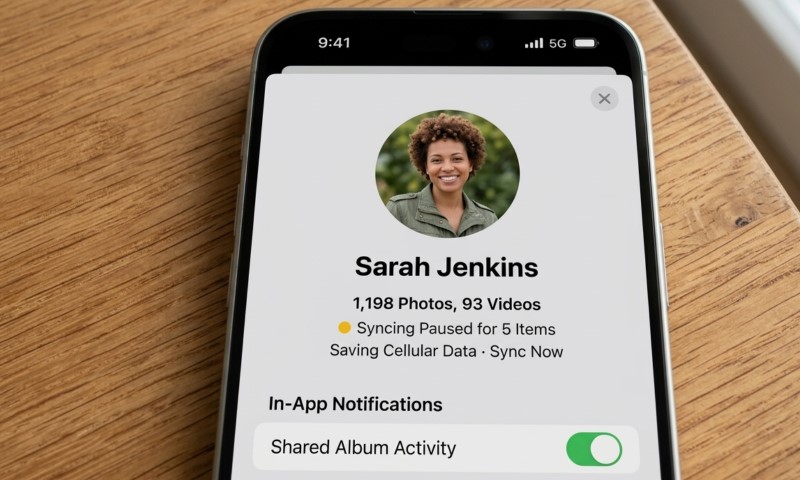
When you see that “iCloud Syncing Paused” banner, think of it as a “yellow light.” Your device has hit a temporary roadblock, maybe to save juice or because the internet is acting up. It’s not a deletion notice; it’s just a signal that your data is waiting for the right moment to move.
Remember, iCloud is the invisible glue that connects everything. It handles your Photos, Messages, Drive files, and even those critical device backups. When that glue stops flowing, it can feel like your devices are living in silos, but it’s usually an easy fix if you follow the trail.
By now, you’ve probably noticed that Apple has rebranded the classic Apple ID to “Apple Account.” It’s the same key to the kingdom, providing access to all your services and ensuring your ecosystem stays connected. Apple defines an Apple Account as the backbone of your device continuity and service access.
A sync pause might hit one service or several. You might spot a yellow badge in Photos, see Messages lagging between your Mac and iPhone, or notice iCloud Drive icons that seem stuck in limbo. Don’t treat this as a single problem; treat it as a status update that requires a little bit of detective work.
Fast Checklist Before Changing Major Settings
Before you start digging into the complex settings, let’s run through the “quick wins.” Most iCloud pauses resolve themselves once the device finds its “happy place”: good power, solid internet, and plenty of space.
| Symptom | Likely Cause | Best First Fix |
| Photos says Low Battery | Battery below Apple’s sync threshold | Charge above 20 percent |
| Photos says Low Power Mode | Battery saving setting limits activity | Disable Low Power Mode temporarily |
| Photos says Low Data Mode | Network data saving is active | Turn off Low Data Mode |
| Photos says Poor Network Connection | Upload path is unstable or slow | Try another Wi-Fi network |
| iCloud storage full | Account has no available cloud space | Delete data or upgrade iCloud+ |
| Backup cannot finish | Storage, Wi-Fi, or software issue | Check backup size, Wi-Fi, and updates |
| Drive files stuck | Drive disabled, file ineligible, or slow internet | Check Drive toggles and file type |
Before you go down any rabbit holes, do the basics: plug in, grab a solid Wi-Fi signal, and make sure your software is current. If things still look broken, check Apple’s System Status page. If multiple services are down for everyone, there’s nothing you can do but wait for Apple to flip the switch back on.
How to Fix iCloud Photos Syncing Paused
Photos are usually the first to pause because they’re the heaviest data users. To get the real story, open the Photos app, scroll all the way down to the bottom of your library, and read the status line. It’ll tell you exactly why it’s taking a break.
Apple’s guidance is pretty specific here. Low Power Mode and Low Data Mode are common culprits designed to save your resources. Messages like “Poor Network Connection” or “Optimizing System Performance” mean your device is just waiting for a better window.
If your battery is under 20%, or if the device is getting too hot, iOS will smartly pause everything to keep the hardware safe.
Here’s your pro-level action plan:
- Connect the iPhone, iPad, or Mac to power.
- Use stable Wi-Fi, preferably home broadband rather than hotel or airport Wi-Fi.
- Turn off Low Power Mode during the upload.
- Turn off Low Data Mode for the active network.
- Keep Photos open for a few minutes, then tap Sync Now if offered.
- Leave the device plugged in overnight for large libraries.
If you have a massive library, patience is your best friend. Syncing 40,000 photos and 4K videos doesn’t happen in minutes – it can take days.
Resist the urge to toggle iCloud Photos off and on; Apple warns that this actually resets the whole process, putting you right back at the end of the line.
How to Fix iCloud Messages Not Syncing
When your Messages aren’t lining up, it’s usually down to a storage crunch or a configuration hiccup. Your first step is the most obvious one: make sure every single device is signed into the exact same Apple Account.
The idea behind iCloud for Messages is simple: keep your history in the cloud and sync every delete or send across your devices. But remember: all those high-res attachments count toward your iCloud storage. If your cloud is full, your messages will be the first to feel the friction.
Check your toggles: on iPhone, it’s under Settings > [Name] > iCloud. On Mac, check Messages Settings > iMessage. Apple notes that for this to work, you need two-factor authentication and iCloud Keychain active. As Apple says, if the account doesn’t match, the sync won’t happen.
Pro tip: iCloud for Messages handles the blue bubbles (iMessage), while Text Message Forwarding handles the green ones (SMS). If your Mac is missing the green bubbles, the fix is usually found in your iPhone’s Forwarding settings, not in iCloud itself.
How to Fix iCloud Backup Paused or Failed
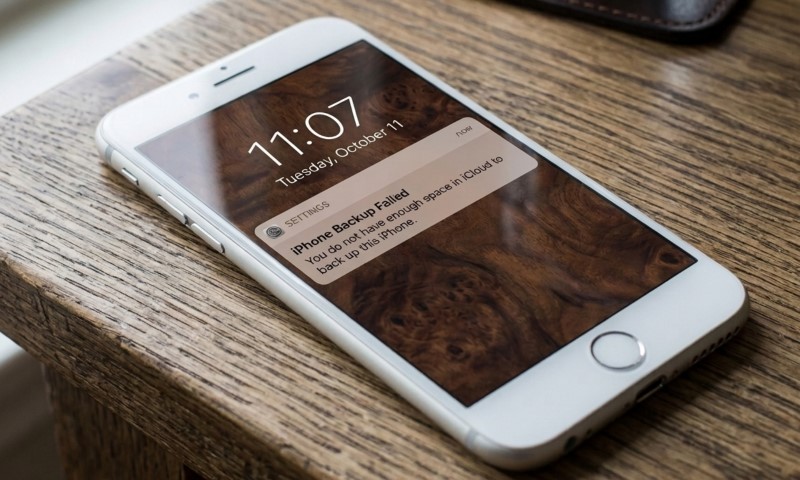
Backup failures are almost always a math problem: your next backup is simply too big for the space you have left. Other times, it’s a shaky Wi-Fi connection or an old software version causing the blockage.
According to Apple’s backup guidance, you should head to your iCloud settings and check the “Next Backup Size.” If it’s bigger than your available space, it’s time to trim the fat or upgrade your plan. Apple also suggests leaving the device on Wi-Fi for a full 24 hours to let a stubborn backup finally push through.
Try this cleanup routine: ditch old backups from devices you don’t own anymore and turn off backup for data-heavy apps like Netflix or Spotify. Moving big videos to your synced Photos library can also lighten the load on your actual device backup.
If the Backup button is greyed out, you might be stuck in a restore loop or under a corporate “management profile.” Take a look at Settings > General > VPN & Device Management to see if an external policy is calling the shots.
How to Fix iCloud Drive Not Syncing
Drive issues often boil down to file types or competing cloud services. If you’ve got Dropbox or Google Drive fighting over the same folders, iCloud Drive might get confused. Ensure the Drive toggle is active on all your gear to start.
In 2026, the setup is seamless: turn on Drive in your iCloud settings across iPhone, Mac, and even Vision Pro. You can track your files in the Files app or jump onto iCloud.com in a browser to see what’s actually made it to the cloud.
The “Desktop and Documents” feature on Mac is a game-changer for accessibility, but as Apple’s Mac guidance explains, the speed of your sync is entirely at the mercy of your internet connection. Large folders take time – give them the bandwidth they need.
Keep an eye out for “Ineligible” files. Apple notes that certain massive libraries – like those for iMovie or Photos – can’t live inside the Desktop/Documents sync area. Also, make sure you aren’t running multiple cloud providers on the same folders, as Apple advises sticking to one manager for your Desktop and Documents to avoid conflicts.
How iCloud Storage Blocks Photos, Messages, Backup, and Drive
View this post on Instagram
When your storage hits its limit, the dominoes start to fall. Photos stop, Messages get sluggish, and your backups will fail. It’s the most common “all-in-one” cause for a sync pause.
That free 5 GB is a nice start, but it doesn’t go far. Modern iCloud+ plans range from 50 GB to a massive 12 TB. These plans don’t just buy you space; they add features like HomeKit Secure Video and family sharing for up to five people.
Do the math: if you have a 256 GB phone, a 5 GB cloud tier is like trying to fit a gallon of water into a thimble. Between 4K video, WhatsApp backups, and old device data, that space disappears fast. It’s often the hidden reason for your syncing woes.
Go to Settings > [Name] > iCloud > Manage Storage. Focus on Photos and Backups first. Usually, deleting one old iPad backup from 2022 will free up more space than deleting a thousand text messages.
When To Wait, When To Force Sync, And When To Contact Apple
Know when to walk away. If your phone is hot or your battery is dying, just wait. Only try to force a sync when you’re on a great network, plugged in, and have plenty of cloud room to spare.
Use the “Sync Now” option in Photos if it’s there. If things are truly stuck, a classic restart often does wonders. And always check Apple System Status – if Mail and Drive are both failing, the problem is likely on Apple’s end, not yours.
Call in the experts if you’re locked out of your account or stuck on two-factor authentication. Another pro tip: if you can see your data on iCloud.com but not on your phone, you know the issue is specific to your device’s sync, not your account data.
Summary
An iCloud sync pause isn’t the end of the world. In 2026, the smart play is to read the message, check your basics (power, Wi-Fi, storage), and make sure you’re using one unified Apple Account. Most issues are just temporary hiccups that clear up with a little bit of care.
Photos need a cool device and a good network. Messages need account harmony and storage room. Backups need a solid Wi-Fi window. And Drive needs clean folder management. Tackle them one by one, and you’ll be back in sync in no time.
The winning strategy is simple: plug it in, find a strong signal, clear some space, and let the system do its thing. Keep it chill, and your data will follow.