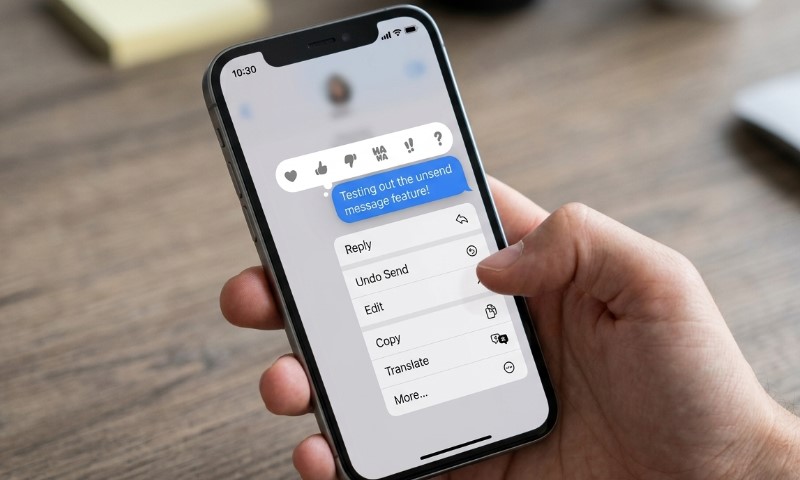
We’ve all been there: hit send, then immediately felt that sinking feeling of regret. Luckily, unsending a message on an iPhone is straightforward. Just open your Messages, press and hold that blue iMessage bubble, and tap Undo Send.
Apple gives you up to 2 minutes after hitting send to pull it back. Keep in mind that this magic trick only works within Apple’s Messages app for iMessage conversations; it doesn’t apply to standard SMS, MMS, or most RCS messages.
It’s also good to know that Apple leaves a digital breadcrumb. A note pops up in both chat transcripts confirming the message was pulled, so while the original text might vanish, the recipient will definitely know something was removed.
There is one big caveat: if your recipient is running older Apple software (iOS, iPadOS, or macOS versions), they might still see the original message.
iPhone Unsend Rules
Apple’s Undo Send feature is incredibly handy, but it follows strict protocols. It’s not a magic “delete” button for every text on your iPhone.
| Feature | Current iPhone Rule In 2026 |
| Feature name | Undo Send |
| App | Apple Messages |
| Message type | iMessage, blue bubbles |
| Time limit | Up to 2 minutes after sending |
| Recipient notice | Both people see a note saying a message was unsent |
| Older Apple software | Original message may remain visible |
| SMS, MMS, RCS | Cannot usually be unsent |
| Edit option | Up to 5 edits within 15 minutes |
Apple’s iPhone User Guide requires iMessage with iOS 16, iPadOS 16.1, macOS 13, visionOS 1, or later for this to work.
Also, remember that SMS, MMS, and RCS messages generally cannot be edited or unsent, with a tiny exception for group chats when at least one other iMessage user is present.
How to Unsend A Message on iPhone
@simplealpaca How To Unsend iMessages On iPhones
To pull back that message, just long-press the sent iMessage bubble and select Undo Send.
- Open the Messages app on your iPhone.
- Open the conversation containing the message.
- Touch and hold the message bubble.
- Tap Undo Send.
- Look for the unsent message notice in the conversation.
Apple’s support instructions mirror this exact process: tap a conversation, touch and hold, then select Undo Send. Apple notes that while the message disappears, you will see a confirmation notice that it’s been unsent.
Timing is everything. You only have a two-minute window, so don’t spend too much time debating whether or not to pull it – rereading the thread or checking if they’ve read it might waste precious seconds.
What Does The Other Person See When You Unsend An iMessage?
The recipient sees a small note in the chat indicating a message was unsent. While the original text is removed from their device when things work as planned, it’s not always invisible.
In reality, the recipient might see:
- A notification preview that popped up before the message vanished.
- A chat note clearly stating a message was unsent.
- The original message, if they’re on outdated Apple software.
- Absolutely nothing, if both devices support the feature and they didn’t catch a notification preview.
Think of Undo Send as a tool for correcting mistakes rather than a guarantee of total privacy. It can scrub the bubble from the thread, but it can’t erase human memory, screenshots, notification history, or copies on older devices.
How Long Do You Have To Unsend A Message?
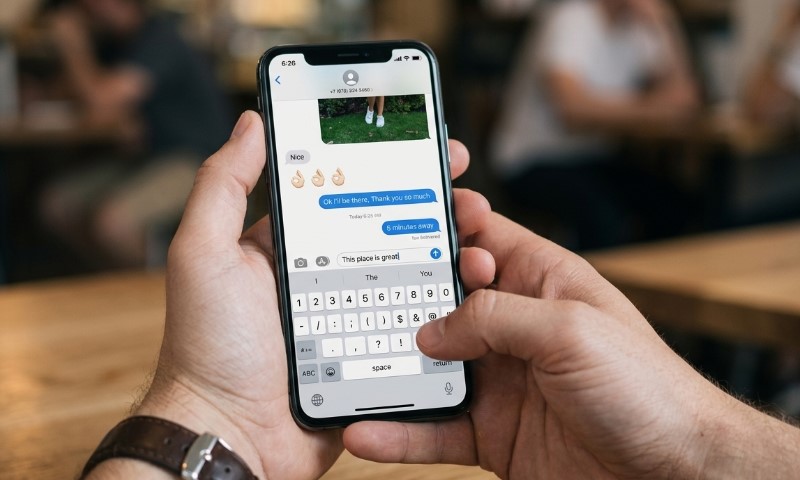
You have a crisp 2-minute window after hitting send. Once those two minutes tick away, the option vanishes.
Keep this simple timeline in mind:
- 0 to 2 minutes: Undo Send is your go-to option.
- 2 to 15 minutes: You might still have the option to Edit if it’s an iMessage.
- After 15 minutes: Usually, you’re past the window for both Undo Send and Edit.
Apple allows you to edit a sent message up to five times within 15 minutes, and both parties can tap the Edited label to see previous versions.
Can You Unsend A Message After It Has Been Read?
Yes, the 2-minute window is all that matters, regardless of whether they’ve read it. The feature is strictly time-based, not read-status based.
Read receipts aren’t the gatekeepers here. If the recipient has their notifications enabled, they might see your message the second it hits their screen. If you unsend it later, the bubble might disappear, but they might already know exactly what you said.
For sensitive content, it’s safer to assume that if they’ve read it, they’ve seen it. Undo Send helps clear the chat, but it can’t guarantee they missed the message initially.
Why The Undo Send Option Might Not Appear
If you’re hunting for the button and can’t find it, you’re likely hitting a technical limitation.
Common culprits include:
- You’ve exceeded the 2-minute time limit.
- It’s a green bubble, meaning it’s an SMS, MMS, or RCS message.
- Either you or the recipient has iMessage turned off.
- The recipient is running an older operating system.
- You sent it via another app like WhatsApp, Instagram, or Signal.
- You’re trying to press an old, received, or already deleted message.
Blue bubbles matter because they represent iMessage, Apple’s proprietary system. Apple explains that these messages travel over Wi-Fi or cellular data, support read receipts, and appear as blue bubbles.
Blue Bubbles, Green Bubbles, And Why RCS Changes Less Than People Expect
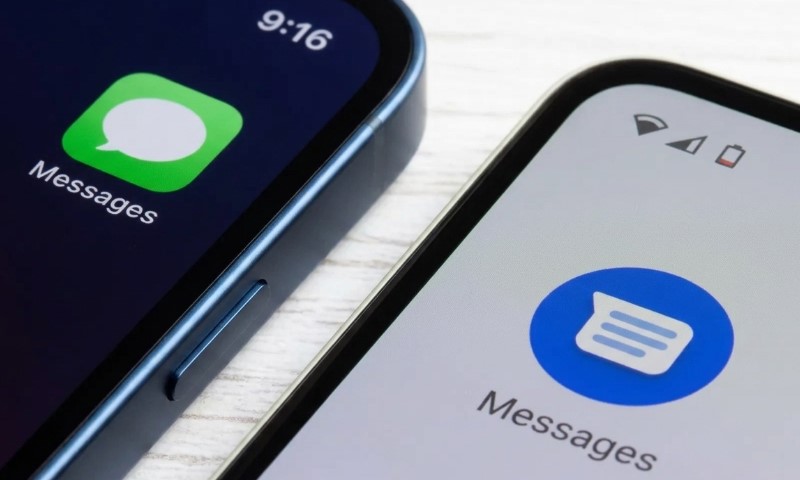
Blue bubbles are for iMessage; green bubbles are for RCS, SMS, or MMS. Undo Send is, fundamentally, a blue-bubble feature.
Apple introduced RCS support in iOS 18 to smooth out texting with Android users, bringing things like high-res media and typing indicators, but Apple keeps RCS as a carrier-provided service in green bubbles.
While RCS has upgraded cross-platform communication, it doesn’t grant iPhone users the same Undo Send freedom as iMessage. As Apple states, SMS, MMS, and RCS generally can’t be unsent, except for that rare group-editing scenario.
In iOS 26.5, Apple began beta-testing end-to-end encrypted RCS, which is great for security, but remember: encryption protects data in transit, but it doesn’t give you a recall button after the fact.
Unsend Vs Edit Vs Delete: Key Differences
It’s easy to mix up these features. Here’s how they differ in function.
| Action | What It Does | Time Limit | Other Person Sees |
| Undo Send | Removes a recent iMessage from both supported transcripts | 2 minutes | A note saying a message was unsent |
| Edit | Changes a recent iMessage | 15 minutes | Edited label, with prior versions visible |
| Delete | Removes messages from your own history or storage | No recall effect | Recipient’s copy is not recalled |
| Delete scheduled message | Cancels a message before delivery | Before scheduled time | Nothing is delivered |
Delete is great for decluttering your phone, but don’t count on it to remove a text from someone else’s device.
Apple’s delete guidance is designed for storage management and iCloud syncing, whereas Undo Send is your specific tool for quick recall.
Can You Unsend Photos, Videos, Voice Messages, And Links?
You can absolutely use Undo Send on these, provided it’s a recent iMessage and you’re still within that 2-minute window.
Just keep in mind the same caveat: if they were quick enough to open it, see the preview, or grab a screenshot, you can’t “undo” their eyes. For truly sensitive content, it’s always best to take a breath and double-check the recipient before you hit send.
A safer habit for sensitive photos or documents is to pause before sending, confirm the recipient, and avoid relying on recall after delivery.
What Happens If The Recipient Has An Older iPhone or Mac?
If your recipient is on older software, the message might stick around. Apple warns that in these cases, the original text may remain visible, and you’ll get a notification letting you know they might still see it.
Apple’s standalone support page notes that everyone needs to be on iMessage with iOS 16, iPadOS 16.1, macOS Ventura, or later for everything to disappear as expected.
This is worth remembering for group chats or family members using older tech; that “unsent” message might not be so hidden for them.
Can You Unsend Messages In Group Chats?
Yes, but only if it’s an iMessage and everyone’s devices are compatible. Group chats are fast-paced, so the risk of someone seeing it before you unsend it is higher.
Also, be wary of “mixed” groups, those with green bubbles or non-Apple users, as these won’t play by the same rules as a pure iMessage thread. Always glance at that bubble color before sending anything important.
For a high-stakes group message, check the bubble color before sending. Blue is the only path where iPhone Undo Send is normally available.
Can The Other Person Still See A Notification Preview?
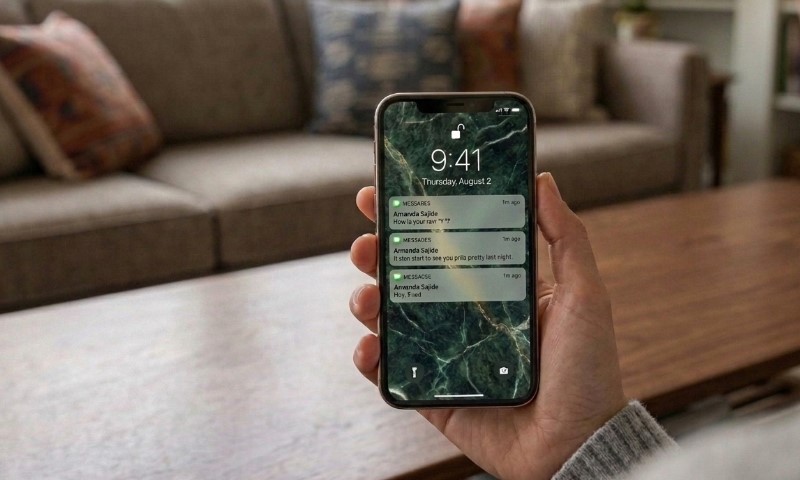
It’s very possible. Apple can’t force a device to scrub a banner that has already popped up on a Lock Screen.
Think of it this way: you send an address, realize you sent it to the wrong person, and hit Undo Send 20 seconds later. If their phone was sitting on a desk with notifications enabled, they likely saw it already.
The thread will show a note that you unsent it, but the damage (or at least the visibility) is already done. Treat this feature as damage control, not magic.
For privacy-sensitive content, treat Undo Send as damage control, not deletion from reality.
What To Do If You Miss The 2-Minute Window
If you’ve missed that window, don’t panic. If it’s an iMessage, you have up to 15 minutes to Edit. It’s perfect for fixing typos or adding context.
Great times to use Edit:
- Correcting a time: “7:30” instead of “8:30”.
- Updating an address or link.
- Fixing a typo that confuses the meaning.
- Clarifying a work message.
- Softening your tone with a quick rewrite.
When NOT to use Edit:
- Trying to hide content someone already saw.
- Changing history during an argument.
- Removing important instructions without follow-up.
- Altering legal, HR, financial, or medical communication without a clear correction note.
For anything high-stakes, it’s classier to send a follow-up: “Correction: I sent the wrong time. It’s actually 8:30.” Honesty ages better than edits.
Use Send Later To Avoid Needing Undo Send
View this post on Instagram
The best way to manage stress is to avoid the need to unsend entirely. Scheduled iMessages are a godsend. You can set them 14 days ahead, edit them, or delete them entirely before they ever land.
Consider using it for:
A few practical uses:
- Scheduling work replies for business hours.
- Timing birthday texts so they aren’t sent at midnight.
- Delay a tense reply until morning.
- Set yourself reminders.
- Polishing long, complex messages.
Remember: Send Later gives you control before delivery, while Undo Send is all about recovery after delivery. That difference is important. Canceling a scheduled message means the recipient never receives it.
Privacy, Etiquette, And Realistic Expectations
Undo Send lowers the cost of mistakes, but it can also create social friction. The recipient sees a removal notice, and in some situations that notice invites more attention than the original typo would have.
A good rule of thumb: use it for honest mistakes, wrong recipients, or accidental double-sends. If you’re changing the meaning of a conversation or dealing with something emotionally charged, a transparent follow-up is usually the most professional approach.
In legal, medical, or financial matters, skip the recall and use a direct correction. Always keep the record clear. Apple’s edit history also means edits are not fully hidden in supported iMessage conversations.
Bottom Line
Undo Send gives you a 2-minute safety net for your iMessages, provided everyone is on updated Apple gear. Just remember that it’s not a perfect eraser, notifications and older devices can still keep the message alive.
For those minor blunders after the 2-minute mark, use Edit. And for everything else? Use Send Later. It’s the smartest way to keep your texting stress-free.